Automatic Angle and Marker Tracking

Published on Wed, 17 Jun 2026

Learn how to use automatic tracking features to measure movement and performance more efficiently.
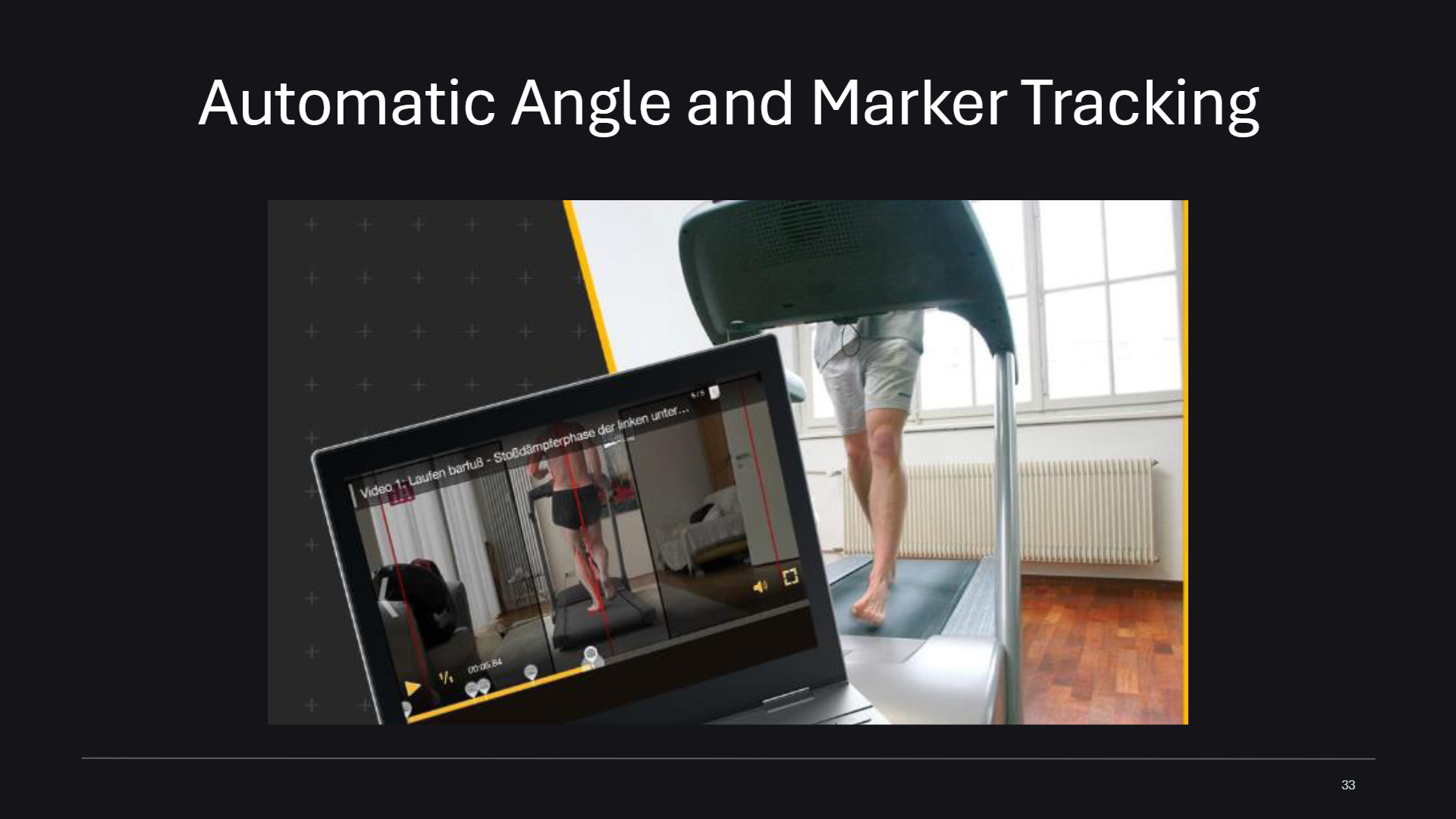
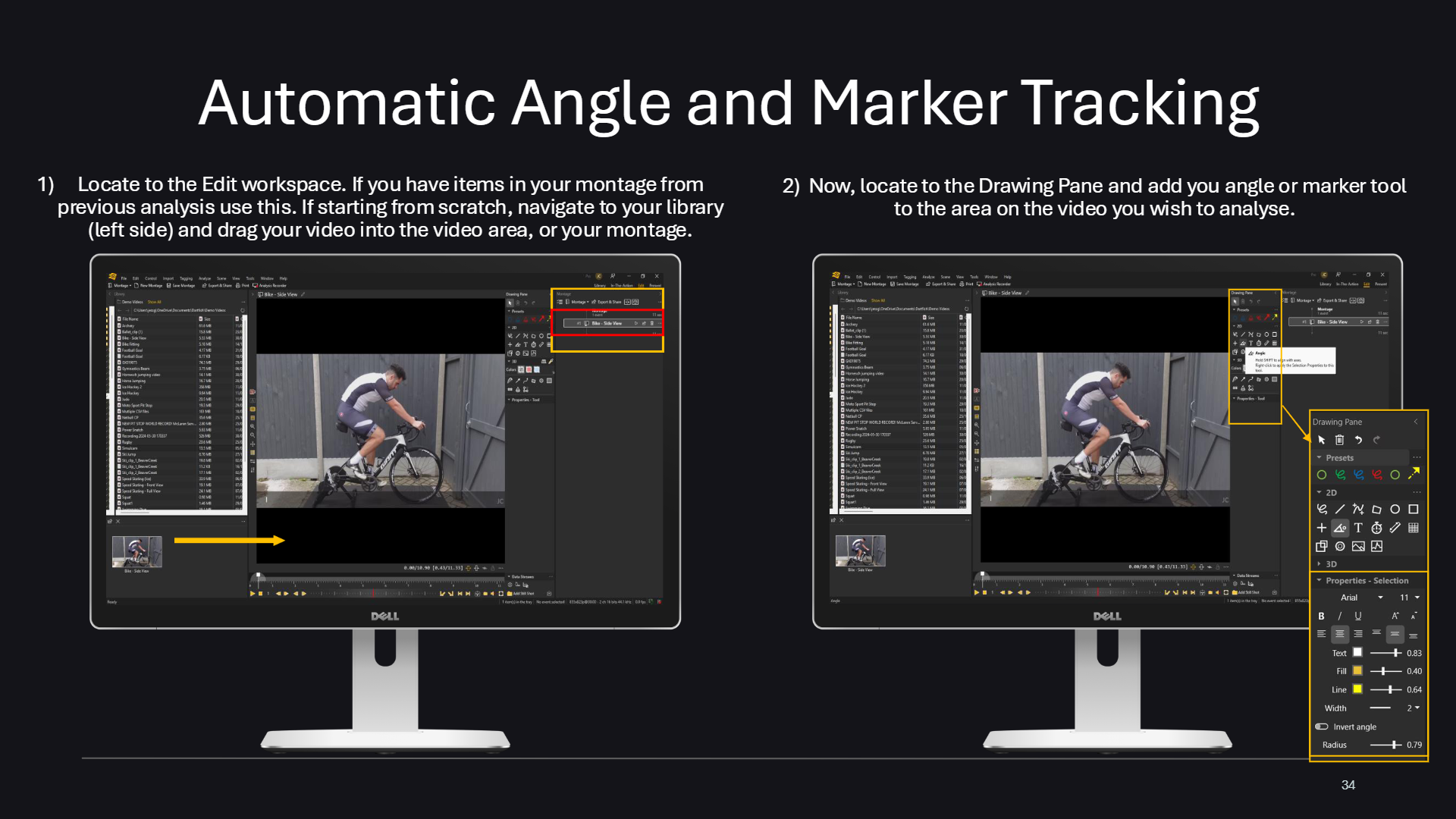
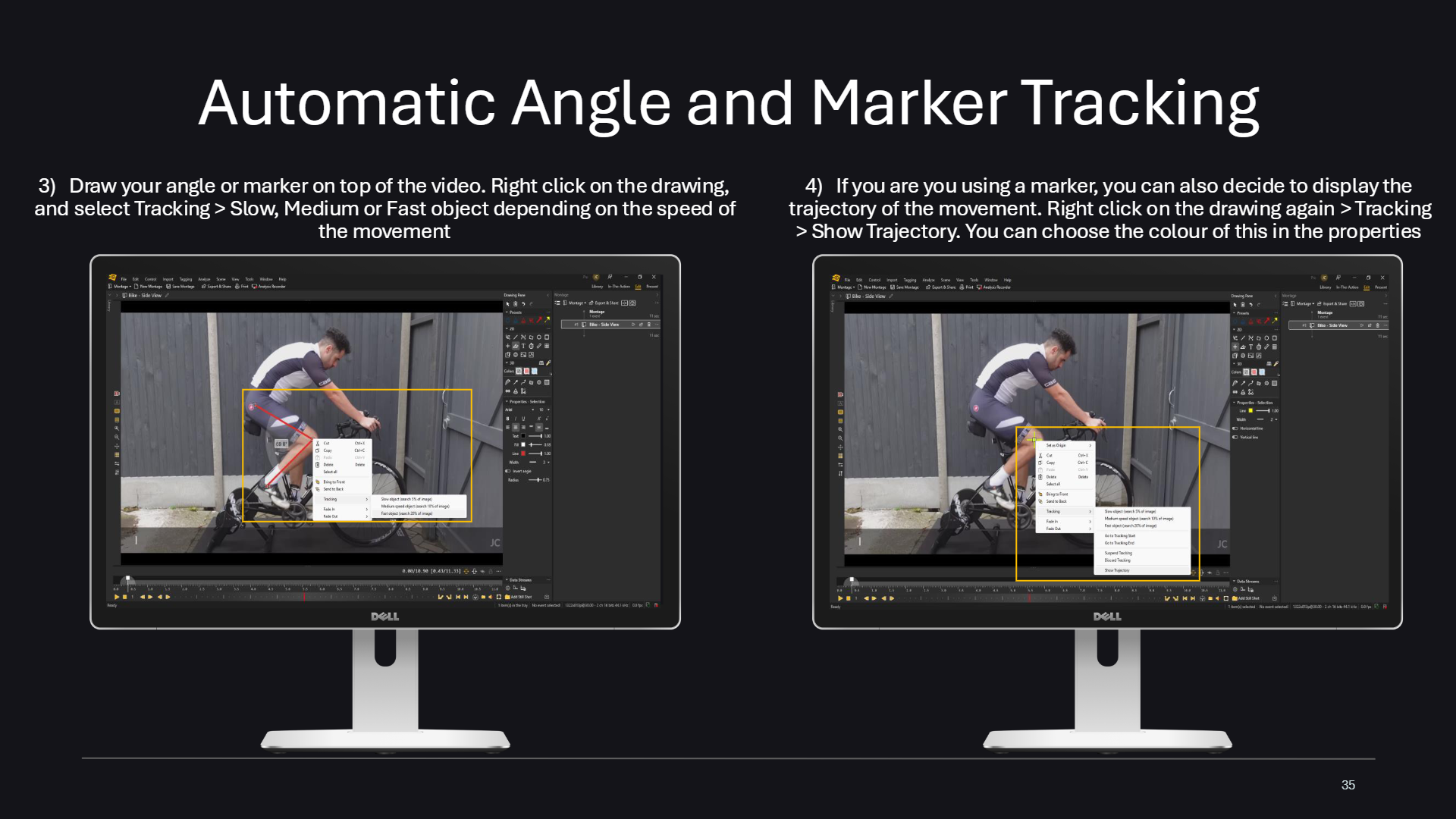
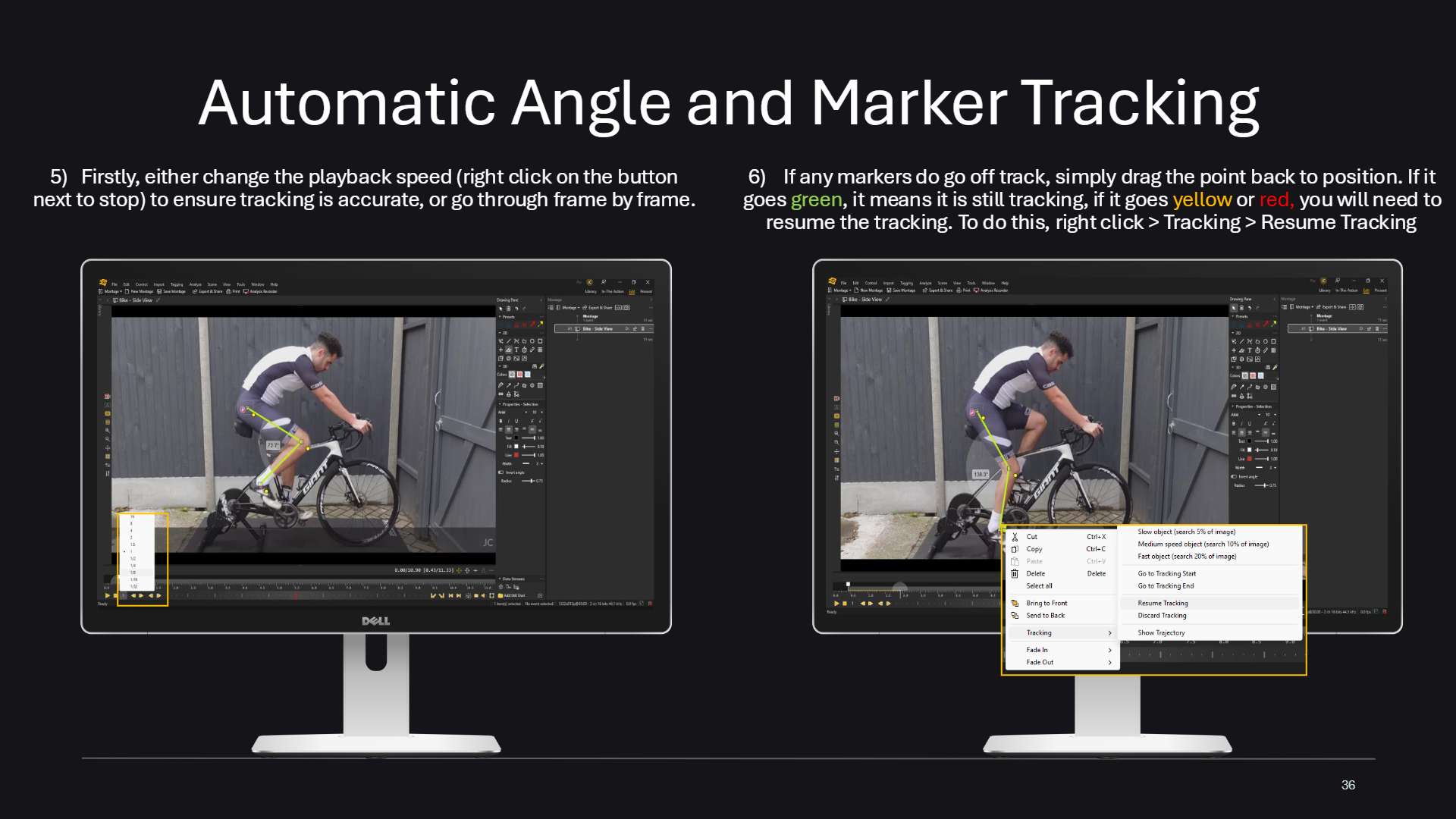
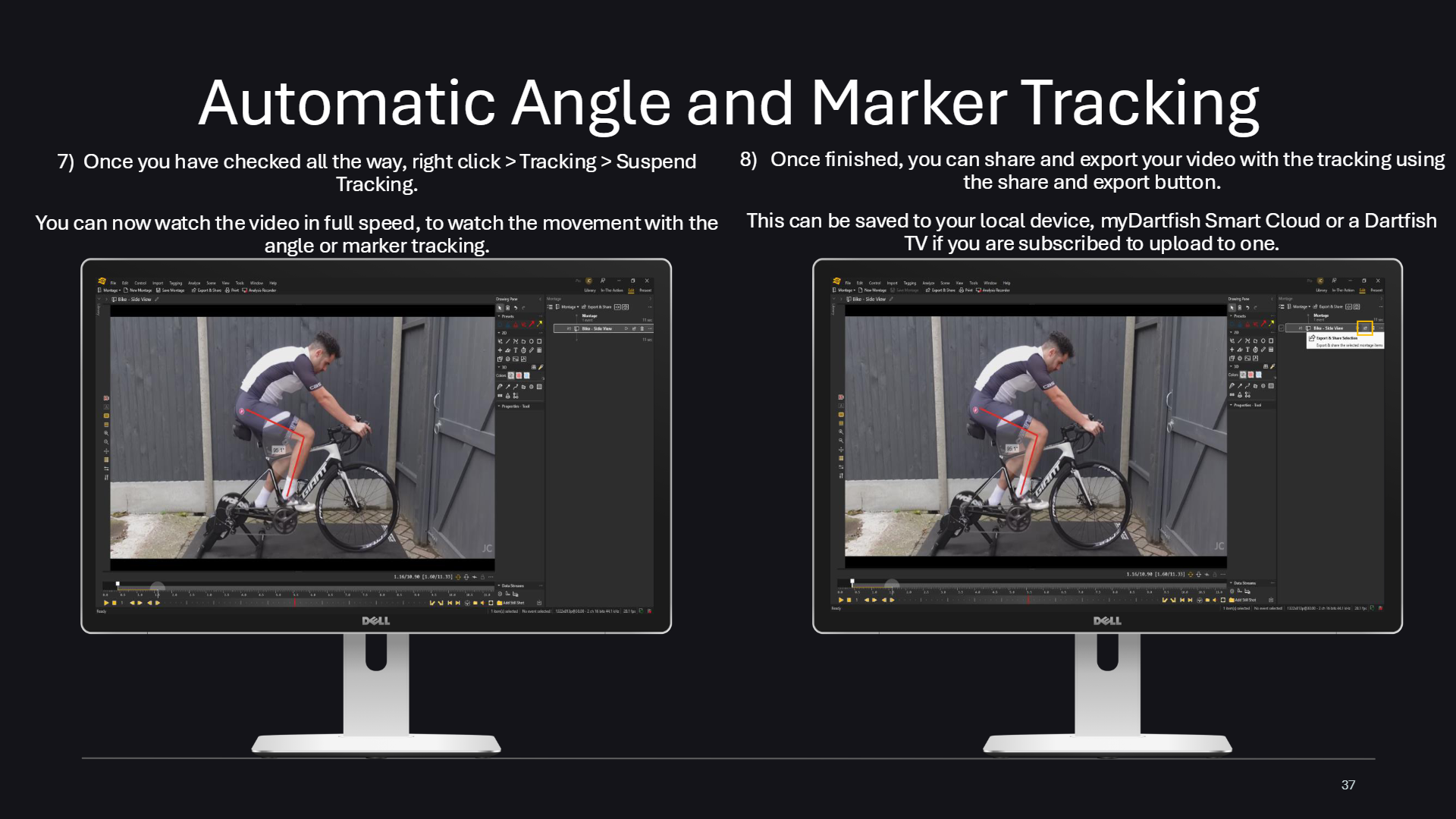
Automatic Angle and Marker Tracking – titleSteps 1 and 2: go to the Edit workspace and add an angle or marker tool from the Drawing paneSteps 3 and 4: draw the angle or marker on the video, right-click it and select Tracking; choose the marker display optionsSteps 5 and 6: adjust the playback speed and drag any point that goes off track back into positionSteps 7 and 8: suspend tracking once checked, then share and export your video with the tracking

Was this article helpful?

That’s Great!

Thank you for your feedback

Sorry! We couldn't be helpful

Thank you for your feedback

Let us know how can we improve this article!

Select at least one of the reasons
CAPTCHA verification is required.

Feedback sent

We appreciate your effort and will try to fix the article