
This article explains when to use the AJA U-TAP, its limitations, and how to configure it correctly with Dartfish Live.
- What is the AJA U-TAP?
- Setting up the AJA U-TAP for use with Dartfish
- Record a video playing on a PC (HDMI only)
What is the AJA U-TAP?
The AJA U-TAP is a professional video capture device that connects a camera or video source (HDMI or SDI) to Dartfish via USB.
It outputs an uncompressed video stream, providing high video quality and low latency, and does not require drivers or external power.
There are two different models, each dedicated to a certain connectivity:
- AJA U-TAP SDI for the capture of SDI streams
- AJA U-TAP HDMI for the capture of HDMI streams
Key characteristics
| Feature | Details |
|---|---|
| Max resolution | 1080p |
| Max frame rate | 60 FPS |
| Video output | Uncompressed |
| Connection to PC | USB 3.1 |
| Power supply | USB-powered |
| Multi-camera support | Up to 2 AJA U-TAP devices |
Pros & Cons
Advantages
- No power supply needed.
- Easy “plug-and-play” installation
- Can record in 1080p/60 fps.
- 2 devices can be used for multi-view recording.
Limitations
Limited stream configuration options
Uncompressed video requires:
High-performance CPU
SSD storage
Sufficient RAM
The AJA U-TAP relies on your PC performance.
Make sure your system meets the Dartfish system requirements.
Setting up the AJA U-TAP for use with Dartfish
Step 1 - Device set up
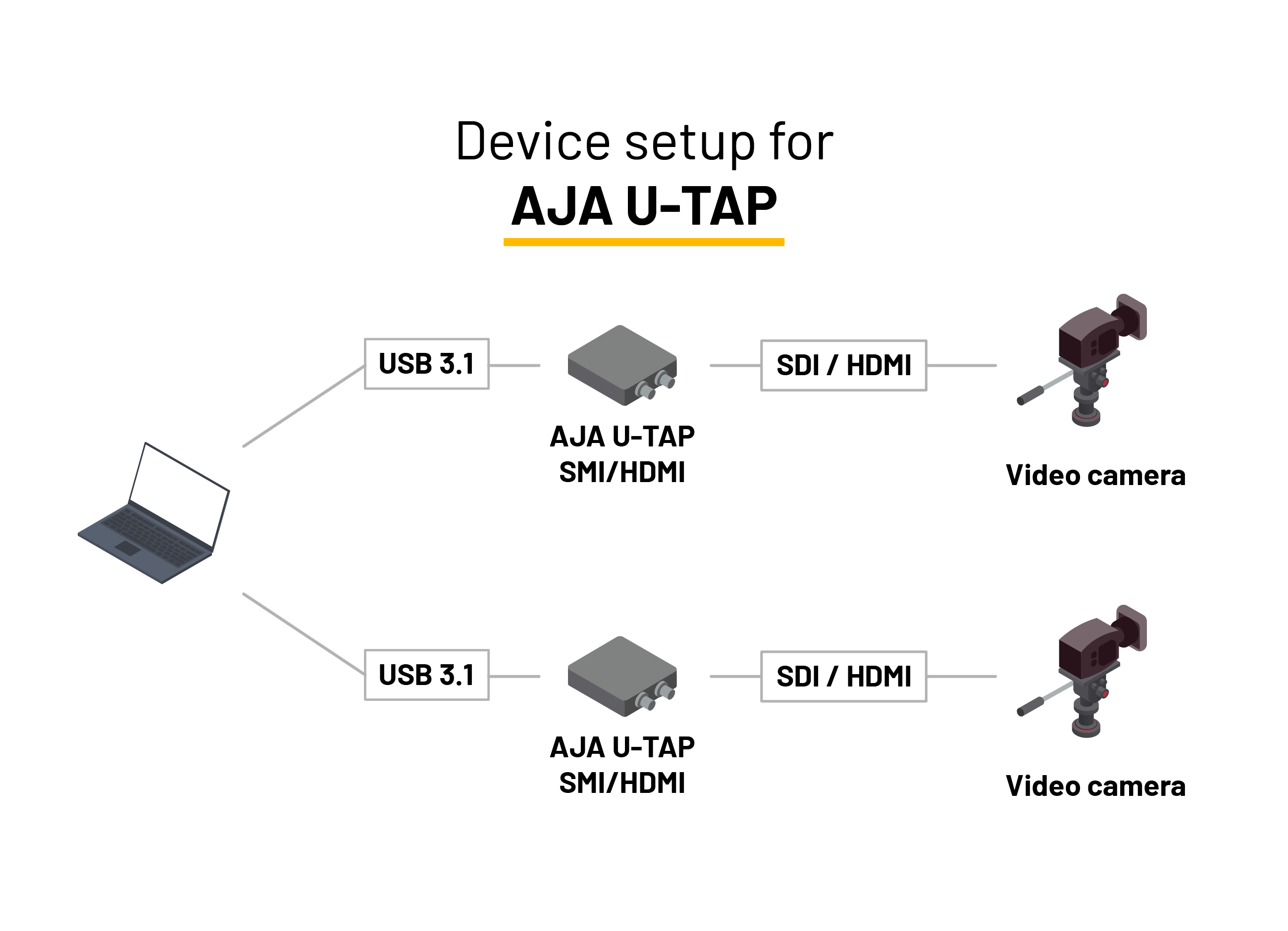
- Connect the USB cable from the AJA U-TAP to your computer.
- Connect the HDMI/SDI cable into the HDMI/SDI In port of the U-TAP
Step 2 - Select the device in Dartfish
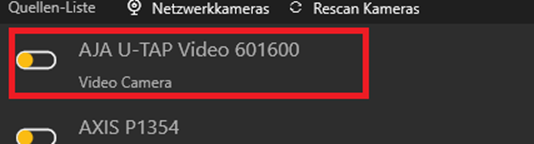
- Go to the Live workspace
- Click on Source.
- Select AJA U-TAP Video
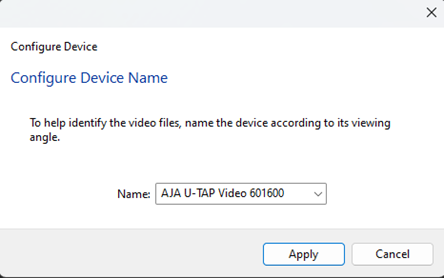
- Click on Apply in the device name window
Step 3 - Configure video format
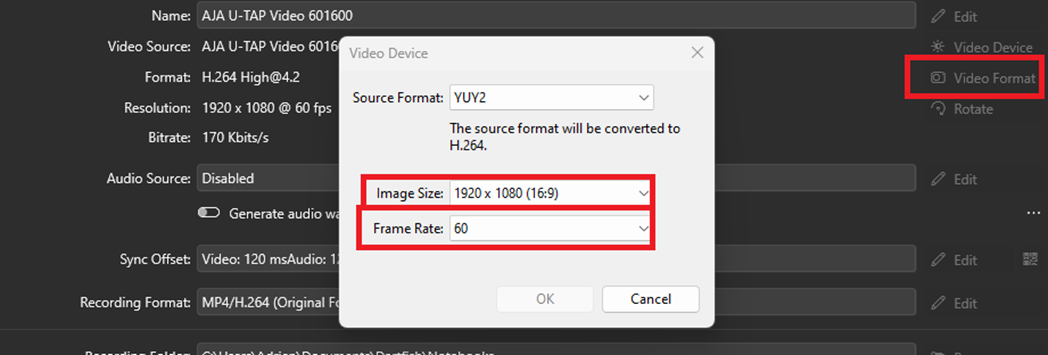
In the Setup page, click Video Format
Select:
Image size (e.g. 1920×1080)
Frame rate (e.g. 60 FPS)
Click OK
Important
The selected frame rate must be equal to or lower than the camera’s output frame rate.
Otherwise, frame duplication may occur.
You are now ready to start recording.
Record a video playing on a PC (HDMI only)
This advanced scenario allows you to record:
Live streams
Online broadcasts
Video playback from a browser or application
This setup works only with AJA U-TAP HDMI.
Overview
The AJA U-TAP is used as a virtual second display.
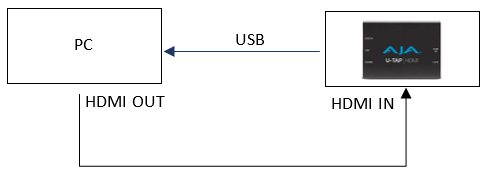
Set up
Connect the laptop HDMI output to the AJA U-TAP HDMI
Press Windows+P
Set display mode to Extend
Launch Dartfish and select AJA U-TAP as the video source
Move the browser or video player to the extended screen
Set the video to full screen
Set audio output to AJA U-TAP (otherwise no audio will be recorded)