
This article explains how channel administrators manage Power BI report templates on dartfish.tv. It covers how to upload, assign, update, and delete templates, and how to link them to collections so that reports are generated automatically when videos are published.
Purpose and scope
Power BI report templates let you generate interactive reports from video and collection data on dartfish.tv. Once a template is assigned to a collection, dartfish.tv generates reports automatically — one per video, or one for the collection as a whole — without any manual step from the user.
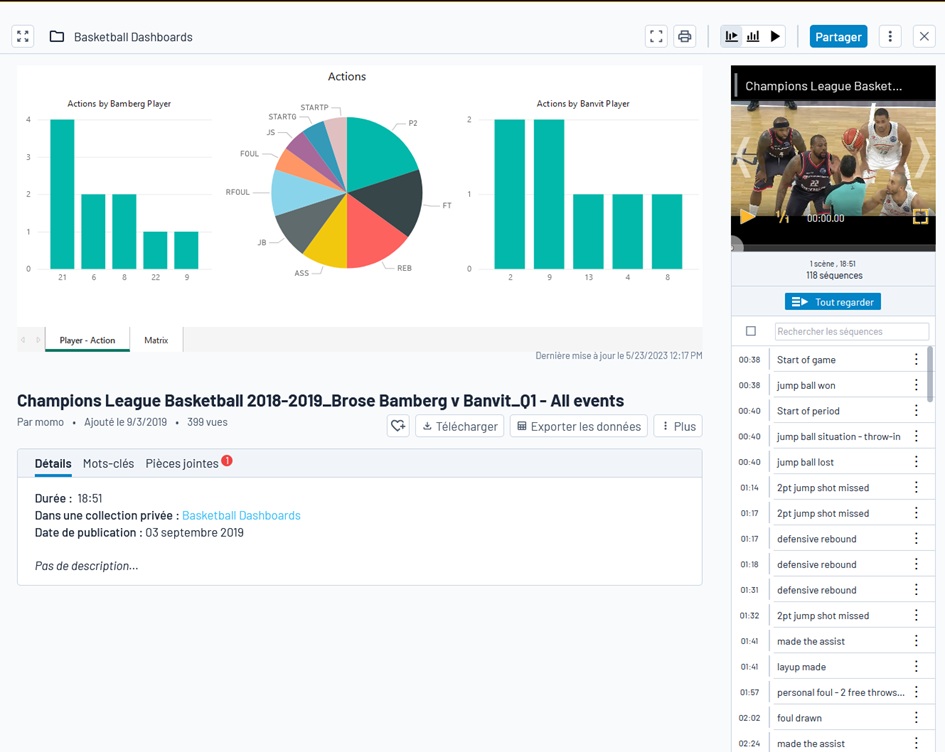
This article covers how to manage the channel-level template library and how to link templates to collections. It does not cover how to create .pbix files in Power BI Desktop or how to configure the dartfish.tv API data source.
What you can do
- Upload Power BI templates created in Power BI Desktop
- Define whether a template generates one report per video or one report per collection
- Assign a collection template and a video template to each collection
- Replace the .pbix file of an existing template without losing collection assignments
- Remove individual collection assignments or delete a template entirely
Requirements
- The Interactive dashboard and dartfish.tv API add-ons must be enabled on your dartfish.tv channel before you can use Power BI report templates. Contact your Dartfish Key Account Manager to enable these add-ons.
- You must have Administrator rights on the dartfish.tv channel.
- Templates must be created as .pbix files using Power BI Desktop and the dartfish.tv API data source.
Step-by-step guide
Open the Power BI templates page
- Open the channel administration area.
- In the left navigation, click Settings.
- Click Power BI templates.
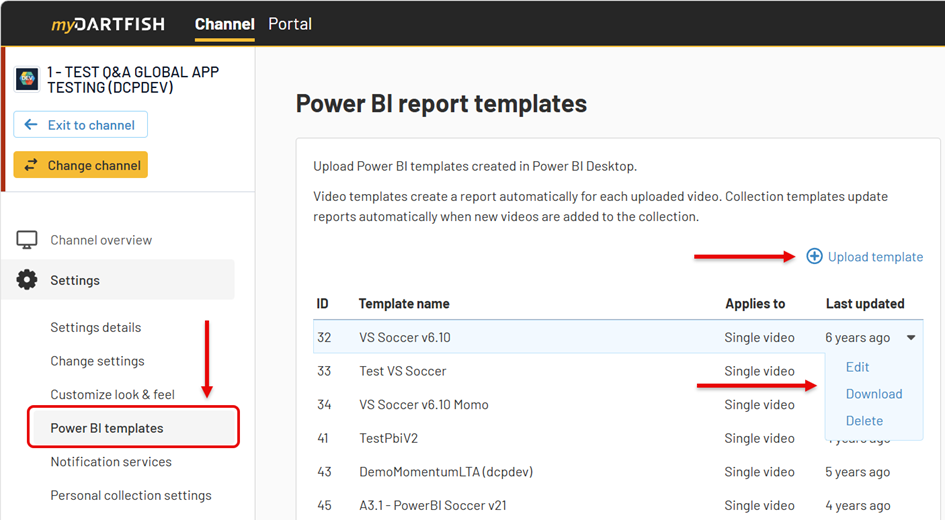
The page lists all templates uploaded to the channel, with their name, report type (Single video or Collection), and the date they were last updated.
Upload a template
- On the Power BI report templates page, click Upload template.
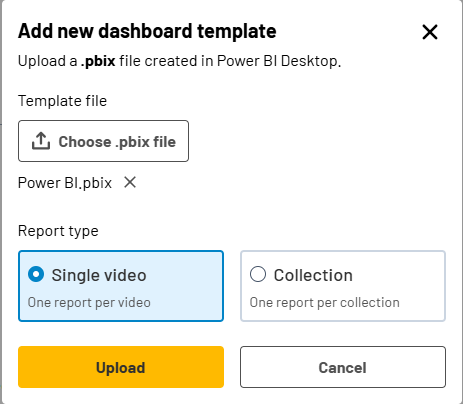
- In the dialog, click Choose .pbix file and select the file from your computer.
- Under Applies to, select the report type:
- Single video — dartfish.tv generates one report for each video uploaded to the collection.
- Collection — dartfish.tv generates one report for the collection as a whole, refreshed as new videos are added.
- Click Upload.
The new template appears in the list.
The report type cannot be changed after the template is assigned to one or more collections. Choose the correct type before assigning the template.
Assign templates to a collection
Each collection can have two templates assigned independently: one Collection template and one Video template.
- In the left navigation, click Collections, then Advanced settings for the relevant collection.
- Scroll to the Power BI templates panel on the right.
- In the Collection template dropdown, select the template to use for the collection-level report.
- In the Video template dropdown, select the template to use for individual video reports.
- Click Save.
Reports are now generated automatically when videos are published to this collection.
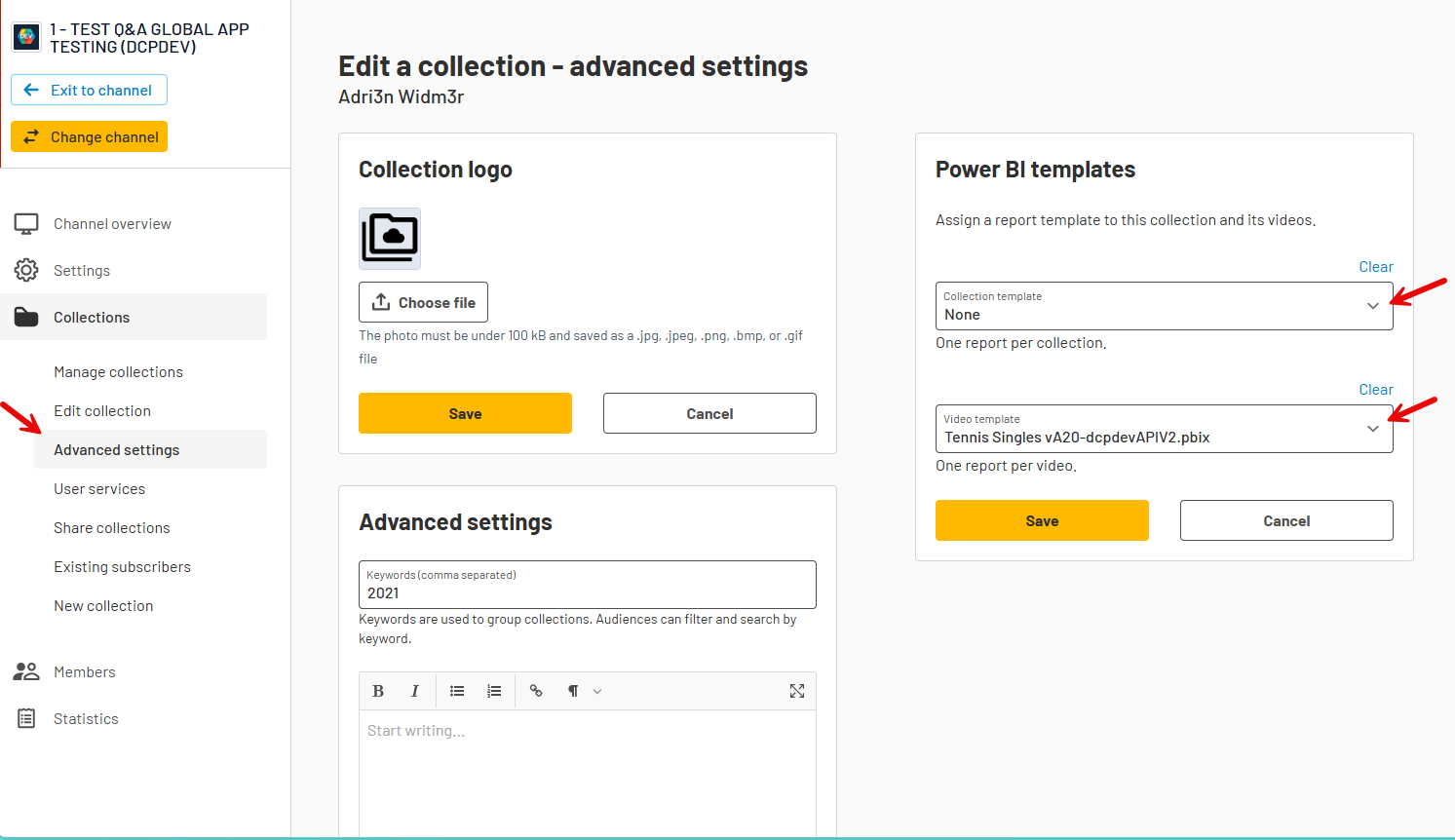
You can assign a collection template, a video template, both, or neither. Each dropdown is independent.
How reports are generated:
- Video template — dartfish.tv generates one report automatically each time a video is uploaded to the collection. If a report is missing, administrators, moderators, and users with edit rights on the collection can regenerate it manually.
- Collection template — dartfish.tv refreshes the collection report automatically every 4 hours. Videos uploaded after the last refresh will appear in the report at the next refresh cycle.
Update a template
You can replace the .pbix file of an existing template at any time. Existing collection assignments are preserved.
- On the Power BI report templates page, select the template you want to update.
- Click the action menu (▼) next to the template row.
- Select Edit.
- In the Edit Power BI template dialog, click Choose .pbix file and select the new file.
- Click Save.
The template file is replaced. All existing collection assignments remain unchanged.
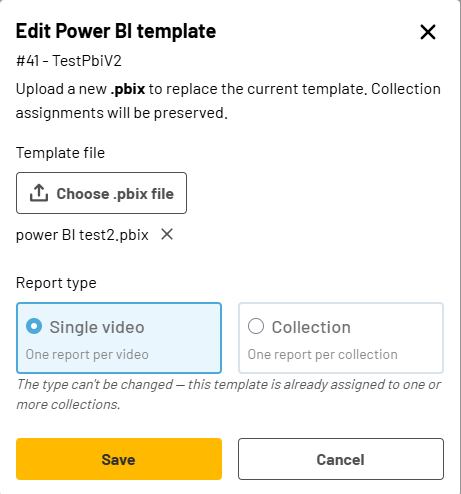
If the template is already assigned to one or more collections, the Report type cannot be changed.
Delete a template
If the template is not assigned to any collection:
- Select the template row and open its action menu.
- Click Delete.
- Confirm the deletion.
The template is permanently removed. Existing reports remain accessible but cannot be regenerated.
If the template is still assigned to one or more collections:
- Select the template row and open its action menu.
- Click Delete.
- A dialog lists all collections the template is currently linked to. You can either:
- Click Remove next to individual collections to unlink them one by one, or
- Type the number shown in the dialog to confirm deletion of the template and removal of all assignments at once.
- Click Delete.
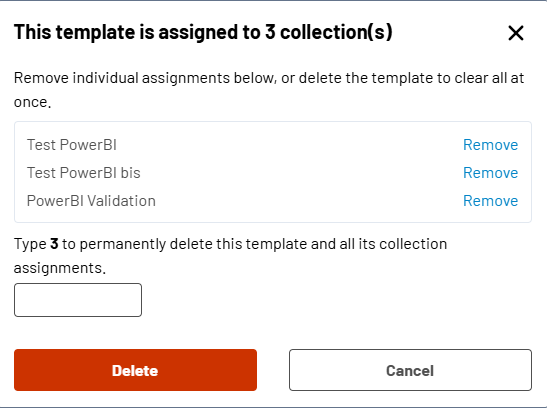
Important: Deleting a template is permanent and cannot be undone. Existing reports remain accessible but cannot be regenerated.
Limitations
- The report type (Single video or Collection) cannot be changed once the template is assigned to at least one collection. Remove all assignments first if you need to change the type.
- Deleting a template removes all its collection assignments. Existing reports remain accessible but cannot be regenerated from the deleted template.
- Template files must be .pbix files created in Power BI Desktop using the dartfish.tv API data source. Other file formats are not supported.
- The Interactive dashboard and dartfish.tv API add-ons must be enabled on the channel. Templates cannot be uploaded or used without these add-ons.
- Each channel can store a maximum of 1000 video reports. When this limit is reached, the oldest report is automatically deleted to make room for the newest one (FIFO). Reports can be regenerated manually by administrators, moderators, or users with edit rights on the collection.
- Collection reports are refreshed automatically every 4 hours. Videos uploaded between two refresh cycles will appear in the report at the next scheduled refresh.
FAQ
Can I assign the same template to multiple collections?
Yes. A template can be assigned to as many collections as needed. Each collection maintains its own assignment independently.
Can I change the report type after uploading?
Only if the template has not been assigned to any collection. Once assigned, the report type is locked. To change it, remove all collection assignments first, then edit the template.
What happens to existing reports if I delete a template?
Existing reports remain accessible to users. They cannot be regenerated once the template is deleted.
What happens to existing reports if I update the .pbix file?
Existing reports are not automatically regenerated. New reports generated after the update will use the new .pbix file. Collection assignments are preserved.
Why is the Applies to field greyed out when I edit a template?
The template is already linked to one or more collections. The report type cannot be changed while assignments exist.
Can I assign both a Collection template and a Video template to the same collection?
Yes. Each collection supports one Collection template and one Video template simultaneously. Both can be set independently in the collection's Advanced settings.
Why is a video report missing?
The channel limit of 1000 video reports may have been reached. When the limit is exceeded, the oldest report is automatically deleted. Administrators, moderators, and users with edit rights on the collection can regenerate a missing report manually.
How quickly does a collection report reflect newly uploaded videos?
Collection reports are refreshed automatically every 4 hours. A video uploaded after the last refresh will appear in the report at the next scheduled cycle.